
OpenClaw Remote Setup: SSH Tunnel and PM2
Learn to run OpenClaw on a remote Docker container with SSH tunneling, fix Codex model errors, index your workspace, and keep the gateway stable with PM2.
It was close to midnight. I had just closed my terminal after a long session. Then I remembered I had not saved any notes. The gateway was gone. The AI had lost every bit of context we had built up together. I had to restart everything and begin from scratch.
That night pushed me to find a better approach. Not just a way to run OpenClaw, but a way to run it properly. Securely, persistently, and without losing context every time I close a window.
This guide covers everything I learned from that experience. SSH tunneling, gateway setup, model error fixes, workspace indexing, and keeping the service alive with PM2. If you are setting up OpenClaw on a remote server, this is the guide you wish existed on day one.
What is OpenClaw
OpenClaw is a developer assistant powered by AI. It runs as a local gateway that connects to language models like OpenAI Codex or GPT. You can use it through a web dashboard or connect it to messaging channels like Telegram. The real power comes from workspace memory. You register your project directories, index them, and the AI begins to understand your codebase. You can ask it to review code, suggest improvements, or explain how a specific function works.
It runs anywhere you have a terminal. A local machine, a VPS, or a Docker container buried inside a private network. That flexibility is great for teams with complex infrastructure. But it also means you need to handle connectivity and process management on your own.
Infrastructure: SSH Tunneling the Right Way
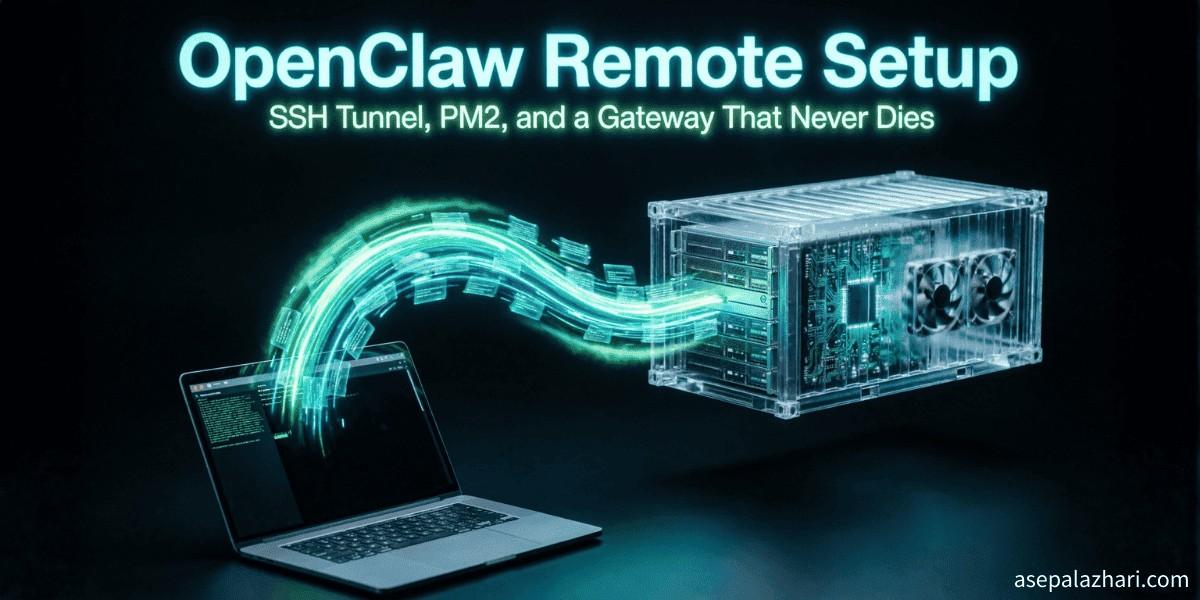
My host is a jump server called bastion running Ubuntu. OpenClaw runs inside a Docker container named app-container on that machine. The container is not exposed to the public internet. No open ports, no HTTP firewall rules.
To reach the OpenClaw dashboard from my laptop, I set up nested SSH tunneling using ProxyJump. Here is the SSH config I added to my laptop at ~/.ssh/config:
Host bastion
    HostName 203.0.113.10
    User root
    Port 2222
    IdentityFile ~/.ssh/id_rsa_myserver

Host dev-server
    HostName localhost
    User devuser
    Port 2200
    ProxyJump bastion
    HostKeyAlias dev-server-unique
    PubkeyAcceptedAlgorithms +ssh-rsa
    KexAlgorithms [email protected]
    IdentityFile ~/.ssh/id_rsa_myserver
    LocalForward 18789 127.0.0.1:18789
    ServerAliveInterval 60
The LocalForward line is the critical piece. It maps port 18789 on my laptop to port 18789 on the remote container. I can open a browser, visit localhost:18789, and reach the OpenClaw dashboard running deep inside that Docker container.
The ServerAliveInterval 60 keeps the SSH connection alive during idle periods. Without it, the tunnel can drop silently after a few minutes of inactivity. That is very frustrating when you are in the middle of a long debugging session.
To connect, run this command from your laptop:
ssh -N dev-serverThe -N flag tells SSH to forward ports without opening a shell. Keep this terminal open, open your browser, and you are in.
Gateway and Port Configuration
My first mistake was changing the default port from 18789 to 7148. I thought there was a conflict on the default port. There was not.
The real problem was simpler than that. The gateway was dying when I closed my terminal. I was running it like this:
npx openclaw gateway --port 7148When the terminal closed, the process died. This is expected behavior for a foreground process. But it is not acceptable for a service that should run continuously.
I fixed two things. First, I restored the default port. Second, I bound the gateway to the loopback address only:
npx openclaw gateway --port 18789 --bind loopback --forceThe —bind loopback flag makes the gateway listen only on 127.0.0.1. It cannot accept connections from anywhere outside localhost. Combined with the SSH tunnel, this is much more secure than exposing the dashboard to the whole network.
To check if your gateway is healthy, run:
npx openclaw health
npx openclaw status
Fixing the Codex Spark Model Error
After getting the tunnel working, I connected through Telegram and got this error immediately:
{"detail":"The 'gpt-5.3-codex-spark' model is not supported when using Codex with a ChatGPT account."}The default agent config was set to use codex-spark. That model requires an enterprise-tier OpenAI account. Standard accounts cannot use it.
The fix is to switch to the standard Codex model. Run these two commands:
npx openclaw config set agent.model openai-codex-5.3
npx openclaw channels set-model telegram openai-codex-5.3
The first command updates the global agent configuration. The second syncs the Telegram channel to match.
After updating the config, open your Telegram chat and type /reset. This clears the session cache. Without that step, the old model stays cached in the active session and the error keeps appearing.
The openai-codex-5.3 model gives you around 272k tokens of context window. That is a very large window. Large enough to load an entire Next.js project structure and still have meaningful conversation about specific files.
If you are interested in managing multiple AI models from a single tool, Also Read: Building Custom MCP Servers for Claude Code: A Developer’s Guide shows how to wire AI tools together in complex environments. Some of the configuration patterns carry over nicely to OpenClaw setups.
Workspace and Memory Indexing
OpenClaw uses a memory system built around your project directories. You register directories and index them. The AI then has awareness of the files inside during a conversation.
Without indexing, the AI has no idea what your project contains. It cannot point you to where a function is defined or describe how your folder structure is organized.
To add and index a workspace, run:
npx openclaw workspace add /home/devuser/projects --name all-projects
npx openclaw memory index --workspace all-projects
The first command registers the directory under a name you choose. The second builds the memory index from the files inside.
One important detail: the correct subcommand is index, not reindex. I spent time trying reindex before figuring this out. The command may vary between versions, so always check with:
npx openclaw --helpYou can register multiple workspaces with different names. The AI will have access to all of them during a session.
Keeping the Gateway Stable with PM2
I used nohup at first to keep the gateway running after terminal disconnect. The process survived. But after about two hours of idle time, it became unresponsive. Nohup keeps a process alive. It does not restart it when it hangs or crashes.
PM2 is the right tool for managing Node.js processes in production. It handles restarts, keeps logs, and survives server reboots.
Install PM2 globally:
npm install pm2 -gStart the gateway with PM2:
pm2 start "npx openclaw gateway --port 18789 --bind loopback --force" --name openclaw-gatewaySave the PM2 process list so it survives reboots:
pm2 saveAfter a server restart, PM2 will bring the gateway back online automatically. You can check status and logs any time:
pm2 status
pm2 logs openclaw-gateway
This change made the biggest difference in my day-to-day workflow. The gateway just stays running. I do not need to check on it. If something crashes, PM2 restarts it. Logs are always there when I need to investigate.
For a broader look at how AI-powered CLI tools compare when handling complex project setups, Also Read: OpenCode Multi-Model CLI: Switch AI Without Limits covers how OpenCode handles model switching and project-level configuration. OpenClaw and OpenCode solve similar problems in different ways, and reading both helps you pick the right tool for your workflow.
Useful Troubleshooting Commands
These are the commands that helped me the most during setup and ongoing operation.
Check if the gateway is responding:
npx openclaw healthCheck connection status and active model:
npx openclaw statusApprove CLI pairing to the gateway:
npx openclaw pairing approve --allForce kill a stuck gateway process:
ps aux | grep openclaw | grep -v grep | awk '{print $2}' | xargs kill -9Use the force kill only when the process is completely unresponsive. PM2 handles this automatically in normal operation. But if you are running without PM2 and need to unstick things fast, that command works.
Security Notes Worth Keeping
Always bind to loopback. Never run the gateway without the —bind loopback flag. Binding to 0.0.0.0 exposes your dashboard to everyone on the network, which is a risk you do not need.
Protect your SSH keys. The SSH tunnel is your access control layer. Anyone with a valid SSH key to bastion can tunnel into the gateway. Keep your private keys secure and rotate them if you suspect compromise.
Use ServerAliveInterval in your SSH config. A dropped tunnel means no connection to the dashboard. A value of 60 seconds is a good balance between keeping the line alive and adding minimal network overhead.
Final Thoughts
OpenClaw has rough edges during the initial setup. The port confusion, the model error, the dying gateway. These are all small problems, and each one has a clear fix.
Once you are past the setup, it works reliably. The combination of SSH tunneling for access control, loopback binding for security, and PM2 for process management gives you a setup that runs without constant attention.
The workspace memory is the feature that makes it genuinely useful over time. Index your main projects once, keep the gateway running, and you have a persistent AI assistant that knows your codebase and remembers context across sessions. That is the kind of tool that actually changes how you work.
If you have basic SSH knowledge and access to a Linux server, the full setup takes under an hour. Start with the SSH tunnel, confirm the gateway starts, then move to PM2. Test each step before adding the next layer.