
Stop Git Asking for Credentials in VS Code
Fix Git authentication prompts forever with credential helpers. Step-by-step guide for Windows, macOS, and Linux with Personal Access Token setup.
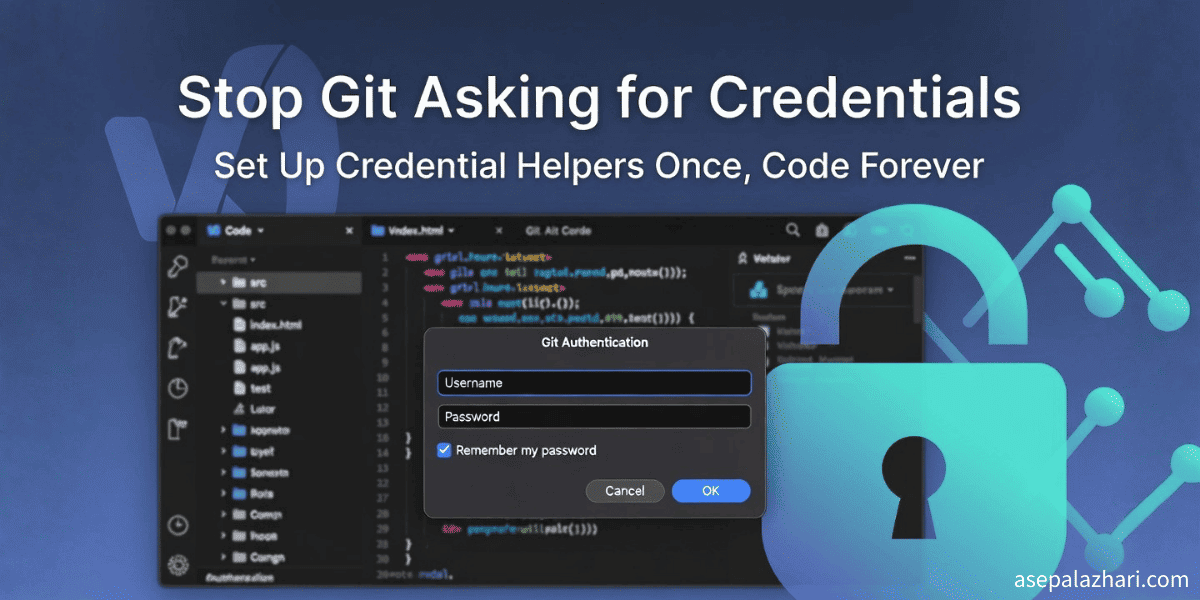
Picture this. You are in the zone. Code flows. Tests pass. You stage your changes and hit push. Then it happens. A popup appears asking for your GitLab username and password. Again. You type it in. Close the window. Return to your editor. Flow broken. Focus shattered.
This is the digital toll booth of modern development. Every push, every pull, another authentication dance. I have been there countless times. Lost hours to this tiny friction point.
What if I told you this is the last time you will ever see that prompt?
Git credential helpers exist to solve exactly this problem. They store your credentials securely and provide them automatically when Git needs them. No more interruptions. No more typing passwords during deploys. No more context switching that kills productivity.
This guide shows you how to set up credential helpers on any platform. Once. Forever.
Why Git Keeps Asking for Credentials
Git uses HTTPS for most operations by default. This is good for security. Firewalls love it. Corporate networks allow it. But HTTPS requires authentication for every operation that touches the remote server.
Without a credential helper, Git has no memory. Each push starts fresh. Each pull demands proof. You become a human password manager, typing credentials on repeat.
The solution is not memorizing faster. It is delegating the memory task to a credential helper. These helpers store your credentials after the first successful authentication and provide them automatically for subsequent operations.
Different platforms offer different helpers. Windows has Credential Manager. macOS has Keychain. Linux offers multiple options. All solve the same problem with different security models.
The Quick Fix: Git Credential Manager
The fastest path to credential peace is Git Credential Manager. It works across platforms and integrates with your operating system security features.
Windows Setup
Windows users get the smoothest experience. Git Credential Manager comes bundled with Git for Windows installations since 2016. If you installed Git recently, you probably already have it.
To enable it, run this command:
git config --global credential.helper managerThe next time you push or pull, a secure popup window appears. You authenticate once using your browser or by entering credentials directly. The manager stores them in Windows Credential Manager, the same secure vault Windows uses for system passwords.
After this first authentication, you are done. Git will retrieve credentials automatically. No more prompts. No more passwords. Just smooth operations.
macOS Setup
macOS users have an even tighter integration. The osxkeychain helper connects Git directly to your macOS Keychain, the system that manages all your passwords, certificates, and secure notes.
Run this command:
git config --global credential.helper osxkeychainOn your next Git operation, macOS asks for your credentials. You provide them once. Keychain stores them encrypted. Future operations pull credentials automatically.
The beauty of this approach is centralization. Your Git credentials live alongside your WiFi passwords and application keys. One secure location. One password to unlock it all. macOS security protecting everything.
Linux Setup
Linux offers more flexibility and more choices. The simplest option is the cache helper, which stores credentials in RAM for a specified timeout period.
git config --global credential.helper cacheBy default, credentials live in memory for 15 minutes. After that, they expire. You authenticate again. This balances security with convenience.
For longer sessions, you can extend the timeout:
git config --global credential.helper 'cache --timeout=3600'This keeps credentials cached for one hour. Adjust the number to match your workflow. Just remember, longer timeouts mean more exposure if someone gains access to your machine.
The cache helper never touches disk. Everything stays in RAM. When you log out or reboot, credentials vanish. This makes it perfect for shared machines or paranoid developers.
Also Read: Fix VS Code Git Tree View Fast - Speaking of Git integration in VS Code, here is another common issue that kills productivity and how to fix it in seconds.
The Alternative: Store Method
Sometimes you want permanence without platform-specific tools. The store method writes credentials to a plain text file in your home directory.
git config --global credential.helper storeNext time you authenticate, Git saves your credentials to ~/.git-credentials. Every subsequent operation reads from this file. No timeouts. No prompts. Permanent storage.
But there is a catch. The file contains plain text credentials. Anyone with read access to your home directory can view them. No encryption. No protection.
Use this method only on machines you fully control. Never on shared computers. Never on servers. The convenience comes with real security risks.
I use it on my personal development machine behind full disk encryption. The encrypted disk protects the credential file. But I would never use it on a work laptop or cloud instance.
GitLab Personal Access Tokens
GitLab changed the authentication game in 2021. They stopped accepting passwords for Git operations entirely. Now you need Personal Access Tokens instead.
Tokens are better than passwords. You can limit their scope. You can set expiration dates. You can revoke them instantly without changing your actual password. They are designed for exactly this use case.
How to Generate a PAT
Getting a token takes about 60 seconds. Navigate to GitLab settings. Find Developer settings at the bottom of the left sidebar. Click Personal access tokens. Choose Tokens (classic) for maximum compatibility.
Click Generate new token. GitLab asks what the token can do. For basic Git operations, select the repo scope. This grants read and write access to your repositories.
Set an expiration date. I recommend 90 days for development machines. Shorter for shared environments. Longer for CI systems that need stability.
Click Generate token. GitLab shows you the token once. Copy it immediately. You will never see it again.
Now when Git asks for a password, paste your token instead. Your credential helper stores it just like a password. But it is safer, revocable, and limited in scope.
Token Security Best Practices
Treat tokens like passwords. Never commit them to repositories. Never share them in chat logs. Never paste them in public issues.
Use fine-grained tokens when possible. They let you restrict access to specific repositories. Classic tokens grant access to all repos you can reach. Fine-grained tokens follow the principle of least privilege.
Rotate tokens regularly. Set calendar reminders. When a token expires, generate a new one. Update your credential helper. This limits the damage if a token leaks.
For CI/CD systems, use environment variables or secret managers. Never hardcode tokens in scripts. Tools like GitLab Actions have built-in secret storage. Use it.
Also Read: Custom Slash Commands in GitLab Copilot The Ultimate Guide - Want to supercharge your GitLab workflow even more? Learn how to create custom AI commands that automate your development process.
Troubleshooting Common Issues
Sometimes the setup does not work perfectly. Here are the issues I see most often and how to fix them.
Still Getting Prompted?
If you configured a credential helper but still see prompts, check your remote URL. Run this command:
git remote -vLook at the output. If you see a URL like this:
origin https://username:[email protected]/user/repo.gitThat is the problem. Hardcoded credentials in the URL override credential helpers. Git uses what is in the URL first.
Fix it by removing the credentials:
git remote set-url origin https://gitlab.com/user/repo.gitNow your credential helper can do its job.
Another issue is local configuration overriding global settings. Git checks repository-specific config first. If someone set a credential helper locally, it wins over your global setting.
Check for local overrides:
git config --local credential.helperIf it returns anything, that is your problem. Remove it:
git config --local --unset credential.helperNow the global setting takes effect.
Method Comparison Table
Different methods suit different situations. Here is how they compare:
| Method | Security Level | Longevity | Best For | Platform |
|---|---|---|---|---|
| manager | High | Permanent | Personal Windows machines | Windows |
| osxkeychain | High | Permanent | Personal Mac machines | macOS |
| cache | Medium | Temporary (15 min default) | Shared computers, quick tasks | Linux |
| store | Low | Permanent | Encrypted personal machines only | All |
Choose based on your security needs and usage patterns. Personal machines with disk encryption can use manager, osxkeychain, or store. Shared environments need cache with short timeouts.
Final Recommendations
For your personal development machine, use the platform-native helper. Windows gets manager. macOS gets osxkeychain. Linux users should consider installing Git Credential Manager for the best experience, or use cache for simplicity.
For shared computers, stick with cache and set a short timeout. Something like 5 to 15 minutes. Long enough to finish your work session. Short enough to limit exposure.
For servers and CI/CD systems, avoid credential helpers entirely. Use SSH keys instead. They are designed for automated authentication. No passwords. No tokens in files. Just keypair authentication.
Here is my personal setup on macOS:
git config --global credential.helper osxkeychainOne command. One authentication. Years of smooth Git operations.
Conclusion
Credential prompts are solved problems. Modern Git offers multiple helpers for every platform and security level. You choose the one that matches your needs.
Set up a credential helper once. Use Personal Access Tokens for GitLab. Configure it globally. Then forget about it and focus on what matters: writing code.
No more authentication interruptions. No more password fatigue. No more broken flow states.
Just smooth, uninterrupted development.
Try the setup now. Your future self will thank you every single day.